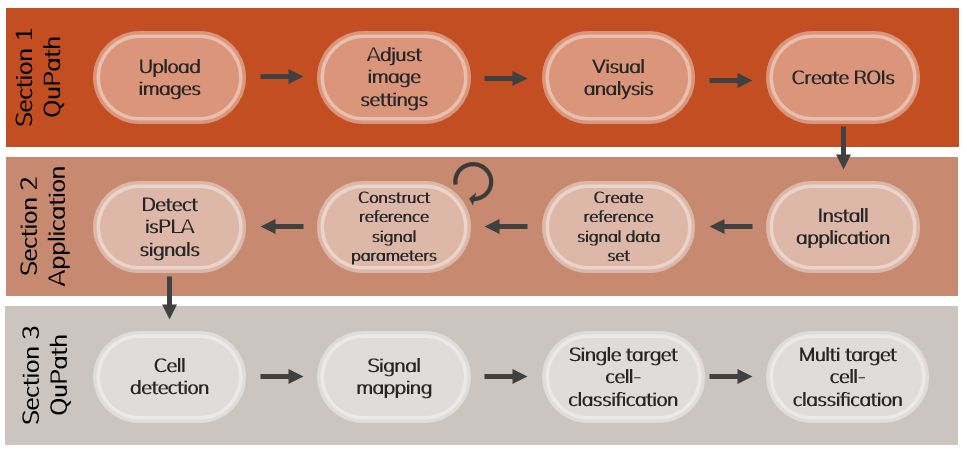
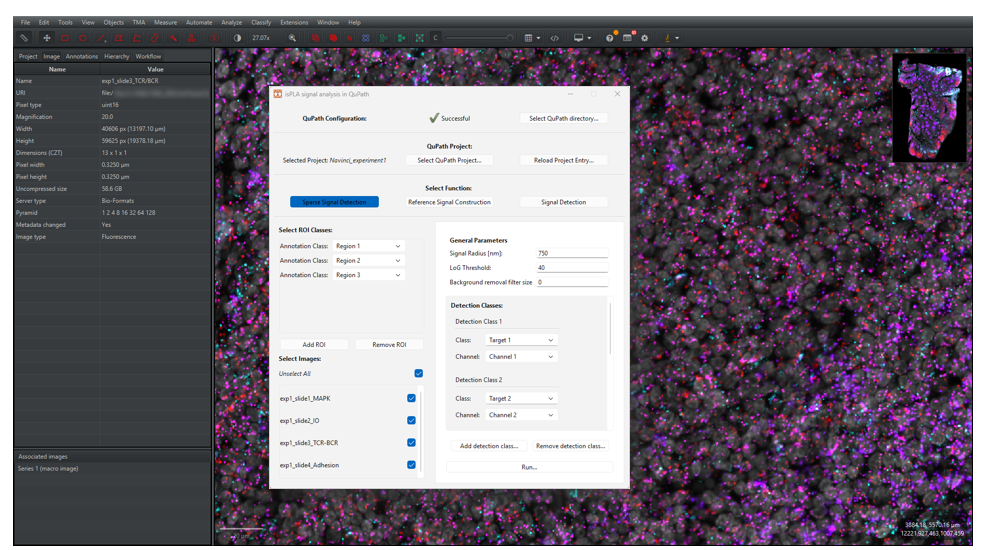
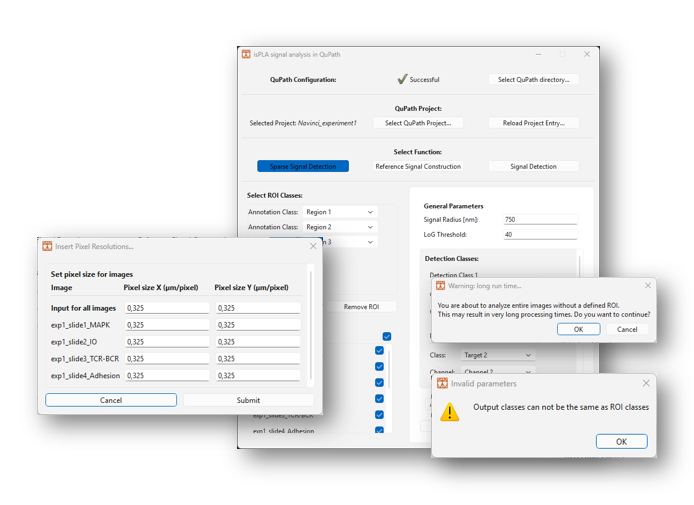
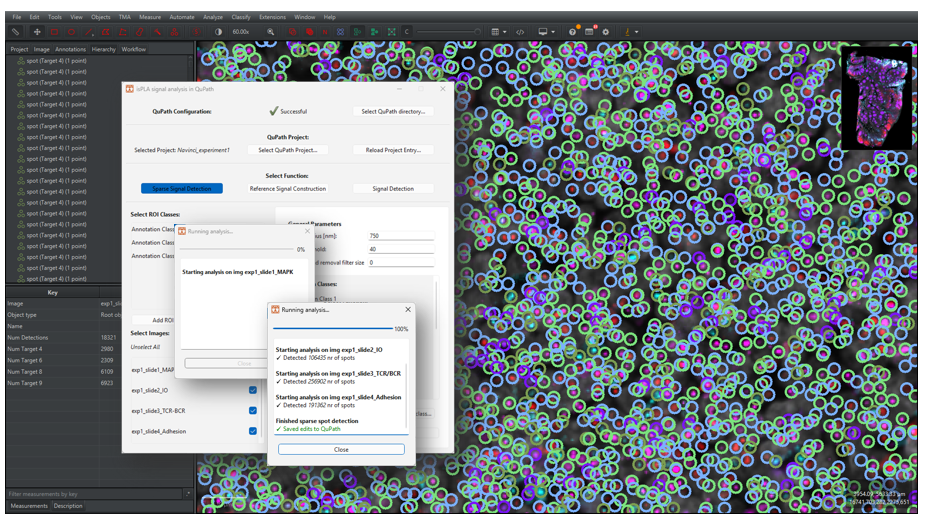
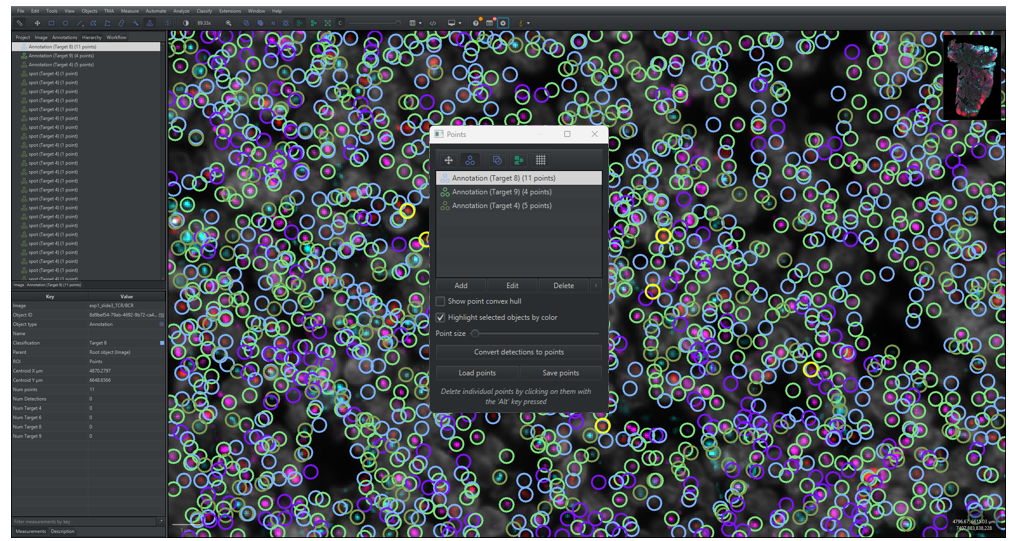
This guide aims to support QuPath users to analyse multiplex data from Navinci in situ proximity ligation assays (isPLA). The guide includes a brief introduction on how to use Qupath, annotate regions of interest (ROIs), how to perform isPLA signal detection, and examples of how to analyse the detected signals in QuPath by performing cell segmentation, mapping signals to cells by spatial distance and creating single or multi-target cell classification (Figure 1).
QuPath Guidelines for Image Analysis

Note on the demonstrated workflows:
IsPLA signal detection: QuPath offers limited options to detect and approximate the number of isPLA signals that are dense and form clusters. Therefore, we recommend the use of the python-based spot detector in Big-FISH. The spot detector tool uses gaussian mixtures to approximate the number of signals in clusters. For more information on Big-FISH, visit their documentation[1].
The remaining steps in this guide are intended as examples of how to analyse multiplex isPLA tissue images. Digital image analysis encompasses a wide variety of methods and strategies, which should be chosen based on the goal of the project. Cell segmentation is demonstrated with the StarDist extension due to its ease of use within Qupath and relatively good performance. However, evaluate which model is the best option for your analysis.
Programs and versions used in this guide:
- Programs:
-
- QuPath v0.5.1
- Python 3.13.2
- Visual Code Studios
-
The guide does not include:
- Recommendations for experimental set-up.
- Recommendations for visual assessment, tissue quality control and image- and data interpretation.
- Recommendations for pre-processing or image-normalization except for an example of background reduction when performing Big-FISH signal detection.
- Recommendations for downstream analysis.
1 Starting a QuPath analysis
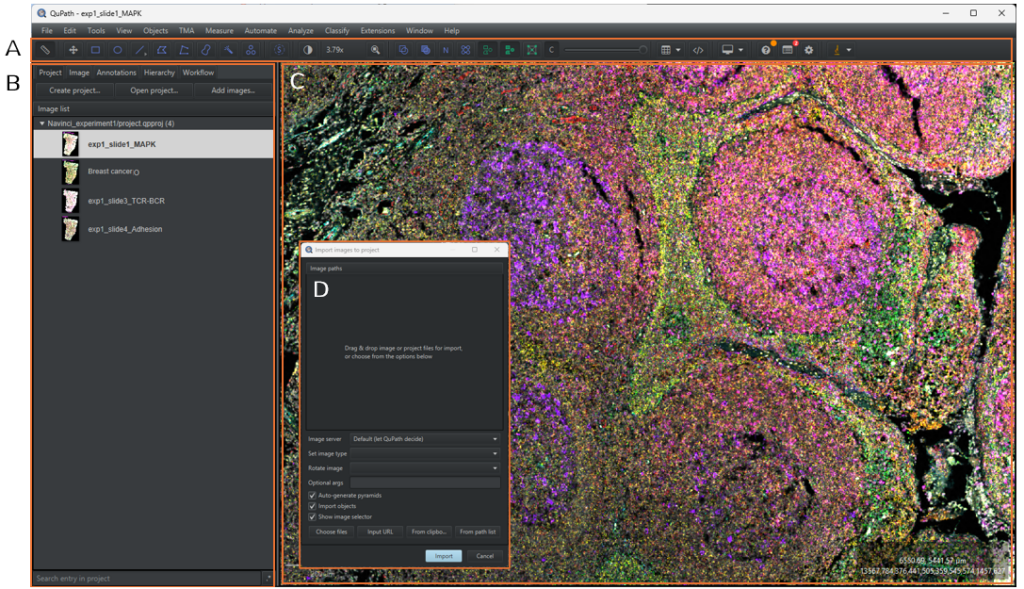
This section includes a brief introduction on how to create projects, add images and view images in QuPath, as shown in Figure 2. If you are completely new to QuPath, we recommend you review the comprehensive tutorials provided by the QuPath developers:
- Installation tutorials: found here
- A comprehensive guide of how to get started with QuPath (e.g. image viewing, creating annotations): found here
- QuPath image analysis tutorials: found here
- The QuPath paper: found here

1.1 Adding images to a project
1.1.1 Create a project by selecting the [Project] tab in the analysis menu and click on [Create project].
1.1.2 In the pop-up file explorer, create a new, empty folder in your desired directory and click on [Select Folder].
Note: A project is a good way to work with multiple images in QuPath. Within the project, one can easily switch between images, run batch-analysis and organize data files such as scripts and classifiers. Ensure to save edits and your current work before you close down QuPath or switch between projects and images. This is done by clicking on [File] → [Save as] or pressing Ctrl + s. To open an already existing project, select the [Project] tab and click on [Open project], select the project folder and then click on [Open].
1.1.3 To add images to the project, either drag and drop the images from the file explorer to QuPath or select the [Project] tab in the analysis pane menu and click on [Add images]. A dialogue box will pop up, as shown in Figure 3D. Click on [Choose files] and select your images in the file explorer and then click on [Open]. Select Fluorescence in the [Set image type] and then click on [import]. All images associated to the file will now be uploaded to the project.
Note: QuPath projects do not contain your images but has associated data files to locate them. If the images are moved to another location, a dialog box will pop up when you re-open the project with the option of re-defining the image locations. In the dialog box, click on [Search] and choose the correct directory, then click on [Apply Changes].

1.1.4 To open an image in the image viewer, double click on the image in the image list.
1.1.5 Go to the [Image] tab in the analysis menu to see the meta data of the image opened in the viewer. Information such as pixel size, image size, image URI and more can be found here.
1.1.6 Zoom in on the image by scrolling with the mouse or double-click on the Display magnification icon [y.yy] positioned to the left of the magnifying glass in the main menu. Go around in the image by dragging the mouse around in the image viewer.
1.2 Adjusting image settings
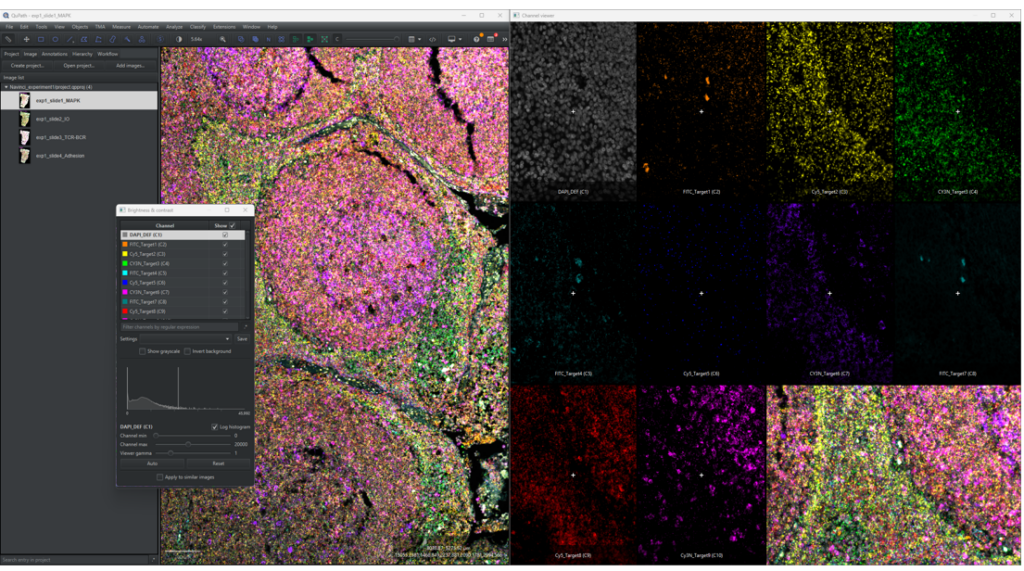
1.2.1 Click on [View] → [Show channel viewer] to open a window to see all the channels separately, as shown in Figure 4. By right clicking on the channel viewer the zoom can be set along with other settings. This is a helpful tool when adjusting image settings or when looking through detected and classified objects.
1.2.2 Click on the 

1.2.3 Go through each channel and change the [Channel max] value and [Channel min] value until you can clearly observe signals, if present, in each channel.
Note: Changing the [Channel min] will facilitate the overall interpretation of staining patterns, especially at high background and noise values. The minimum value should however be changed with caution since it can hide signals or overall cause difficulties in understanding what is signal and what is noise. It is good to go back to a minimum value at 0 to fully understand the signals at high magnifications at the individual channels.
1.2.4 (Optional) To change the names of the channels displayed in the Brightness & Contrast window to the names of the targets, you can double click on the channel names and type in a new name or use the code below to change all channels at once. Using target names instead of channel names facilitates data interpretation at later steps. To use the script:
-
-
- Open the script editor by clicking on [Automate] → [Script editor] or pressing ctrl + [, copy the code below and paste it into the editor.
-
-
-
- Add channels to the function by removing the
in rows 5-11 to activate them. For example, if you have six channels in total (with DAPI), then four additional rows should be added.
- Change the
in the active rows to the desired channel names. The code will name the channels by the order of the channel list, meaning that the first active row will name channel one (C1) and so on.
- Click on [Run] or press Ctrl + r.
- Add channels to the function by removing the
-
Note: It is very important that channel names are consistent in all images when running the scripts in this guideline, especially when creating and running the classifiers created in section 3.
1.2.5 The image settings can be saved by writing a file name in the [Settings] drop-down menu below the channel list and clicking on [Save] in the Brightness and contrast window. This enables the user to go back and forth between settings and apply the same settings between images (which may be easier than using the [Apply to similar images]). Note that this only works for images with the same channels, channel order and channel names.
1.3 Creating regions of interests
1.3.1 Click on one of the annotation drawing tools in the main menu to the left. In the ROIs shown in Figure 5 below, the rectangle tool, 

Tips and tricks when drawing regions of interests:
- To move annotations around, select the move tool by clicking on
or press m, and then select the annotation by double clicking on it. The annotation is moved by pressing the cursor down within the annotation and then dragging it around.
- To erase parts of the annotations, select the annotation by double clicking on it and select the brush tool,
. Hold down Alt and left click while moving the cursor around on the annotation.
- To rotate annotations, click on [Objects] → [Annotations] → [Transform Annotations] or press Ctrl + Shift + T. A small circle will appear above the annotation in the middle, click and hold on to it while dragging the mouse around to rotate. When you are happy with the results, push Enter and confirm changes by clicking on [Selected Object] in the pop-up window. Note that the transformation circle can be small and difficult to find.
- By clicking on [Objects] → [Annotations] in the main menu there are several nice-to-have tools for making regions of interests, such as [Create full image annotation], [Fill holes], [Expand Annotation] and much more.
1.3.2 Lock the annotation by right clicking on the object in the annotation list in the [Annotation] tab of the analysis menu and click on [Lock]. The setting prevents the annotation from being moved around.
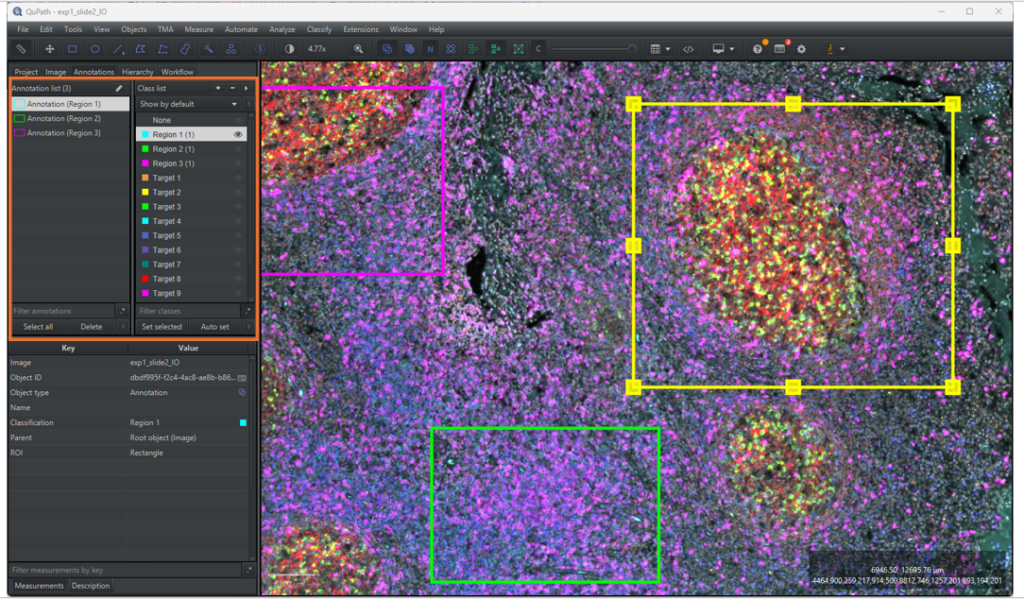
1.3.3 When analysing different morphological regions in a tissue, it is easier to keep track of annotations by classifying them, as exemplified in Figure 5. To add a class to the classification list, go to the [Annotation] tab in the analysis menu and right click on the classification list located on the right of the Annotation list. Select [Add/Remove] → [Add class], write the class name in the pop-up window and click on [OK].
1.3.4 To classify a ROI, select the annotation in the annotation list, select the corresponding class in the classification list and click on [Set selected]. The annotation should now be outlined in the main viewer with the same colour as the class legend in the classification list and have the classification name written in parentheses next to its name.

2 Signal Detection
This section includes instructions and recommendations on how to detect isPLA signals. It is critical to understand isPLA signal features when optimising signal detection parameters. It is critical to understand isPLA signal features when optimising signal detection parameters as they can vary depending on the target (abundance and distribution), tissue and image acquisition settings. Signal features, as shown in Figure 6, to consider are:
-
- Sparse signals: Sparse signals can be in- or out-of-focus depending on where they are positioned relative to the z-plane that the image is taken in. Out-of-focus signals will have reduced intensity and an increase in apparent size. Accordingly, focused signals are easier to detect than out-of-focus signals.
- Clustered signals: Clusters consists of multiple signals with different x, y and z coordinates that are more or less visually indistinguishable from each other. Cell classification based on clustered signals can be performed by mean signal intensity.
- False positive signals: Although isPLA improves specific protein detection by requiring two binding events to form a signal, false positive signals can still occur by proximal, unspecific antibody binding of Navenibody pairs. False positives can be similar in shape and intensity compared to true positive signals but are often very sparse. Use of appropriate technical and biological controls can aid in distinguishing the spatial location and distribution of true and false signals.

Use of a gaussian mixture signal detection approach is recommended to manage both sparse and clustered signals. However, implementation of gaussian mixtures is not implemented in the latest version of QuPath (v0.5.1). Therefore, the signal detection step is demonstrated in Python using the Big-FISH algorithm. Big-FISH is a toolbox for analysing smFISH images but can as well be used to analyse isPLA tissue images. The tool is highly modular and are accessible for both non-experts and experts and allows the user to pre-process images, detect spots and clustered spots, segment cells and quantify spot patterns. We recommend the spot detection module due to its capability of resolving clustered and indifferentiable spots and for its user-friendly build and documentation. For more examples on working with Big-FISH, visit their documentation[2].
The signal detection workflow using Big-FISH is composed of six main steps, as shown in Figure 7. The detection module works by detecting sparse signals and by detecting and decomposing clusters to individual signals. The cluster decomposition is a mixture of gaussian method, in which parameters of a reference signal is used to approximate the number of signals inside the cluster.
This section will provide a downloadable script to analyse signals in one image. The script and parameter adjustments will be explained throughout this section.

Note: For more advanced Python users, it is possible to interact with QuPath directly from Python via the library PAQUO3, which eliminates the need of importing and exporting annotation and detection objects. A script for using the library is given at the end of section 2.2. It is important to note that using the library requires calibrating the library with the QuPath software, which can be tricky for more novice Python users. If you would like to use PAQUO, you can skip section 2.1 and analyse your images with the script “PAQUO_signal_analysis.py” given at the end of section 2.3. Section 2.2 will help you modify all parameters correctly to run the analysis.
2.1 Exporting regions of interests
2.1.1 Open the script editor by clicking on [Automate] → [Script editor] or press ctrl + [.
2.1.2 Copy the code below and paste it into the editor.
2.1.3 Change the ROI 


2.1.4 Click on [Run] or press Ctrl + r.
2.1.5 Go to your file explorer and navigate to the image directory. You should now see a subfolder named “GeoJson ROIs” containing a file named “[image name].geojson”. This organization of the ROI GeoJson files will be used when detecting signals in the image in Python in section 2.2.
Note: To export annotations for several images at once, click on [⫶] → [Run for Project], mark the images in the “Available” box that you want to analyse and click on [>] to move them to the “Selected” Box. Once all images have been moved to the correct box, click on [OK]. A bar will now show to indicate how many of the images that are done. Once done, a pop-up window will show up asking if you want to reload the image you have opened, press [OK].
2.2 Big-FISH spot detection
In this section an example of how to detect isPLA signals in Python is provided. A script to open images, read GeoJson ROIs, detect signals and export results to a GeoJson file will be explained and modified. This section is a step-by-step walkthrough where the script is described in sections to allow for bug testing. The full pipeline and parameters are described after step 2.2.18. Furthermore, the script used here performs analysis at one image at a time, scripts to run batch-analysis are found in the end of this section.
Note: The scripts have been developed for Windows and may need to be adapted when using another OS.
2.2.1 To download a zipped folder with the necessary files for this section, follow the link below to go to the gist.github page. On the webpage, click on the button [Download ZIP] in the upper right corner and the folder will be downloaded to your computer. Make sure to extract the files to an appropriate folder location before continuing. The files downloaded are:
a. requirements.txt: a file used to install the necessary modules to your Python environment.
b. isPLA_analysis.py: a python file that contains all functions that will be used to analyse the images.
c. isPLA_analysis_pipeline.py: a python file that contains the pipeline script used to open and analyse images, as well as to export the resulting signal detections to a GeoJson file.
2.2.2 Open a python environment. In this guide, the Visual Studio Code (VS Code) environment is used together with the VS Code Python extension.
2.2.3 In the terminal, write:
where 
The following modules are required, including modules included in the python standard library:
- Geopandas[4]: used to extract object information from geojson files
- tifffile[5]: used to open and crop images
- Ome-types[6]: used to read image meta data
- Json[7]: used to write new geojson files for signal detections.
- Shapely[8]: used to create a polygon by a GeoJson object.
- Os[9]: used to check that files exist
- Big-FISH[10]: used for detecting signals and decomposing clustered signals
- Big-FISH has dependencies to numpy, scipy, scikit-learn, scikit-image, matplotlib, pandas and mrc.Big-FISH[10] used for detecting signals and decomposing clustered signals
2.2.4 Open the python file in VSC by clicking on [File] → [Open File…] or by pressing Ctrl + o. Locate and select the file and then click on [Open].
2.2.5 Look at rows 1-14, as shown below. The selection imports the required modules to the script.
2.2.6 Change the 
2.2.7 (Optional) Run the script in rows 1-14. This is done in VS Code by clicking on the left side of the last line number (here 14), right-clicking within the selection → [Run Python] → [Run Selection/Line in Python Terminal] or by pressing Shift + Enter. VS Code might ask you to save the file and choose a debugger (select the Python debugger) before initiating the run. Make sure that all modules were imported correctly, an error message will be written in the terminal if something failed.
2.2.8 Rows 17-48, as shown below, finds the GeoJson ROI file created in section 2.1 by using the two specifications described in step 2.1.5. Furthermore, the script will create another subfolder called “GeoJson signal detections” in the same directory. The detected signals will be exported in a GeoJson file in this subfolder.
2.2.9 Change the 
2.2.10 (Optional) Run the script in rows 1-48, as described in step 2.2.7. Remember to remove the breakpoint at line 14 by clicking on it. Make sure that there are no error messages in the terminal and that a new “GeoJson signal detections” subfolder was created in the image directory. If there are any error messages printed in the terminal, read through the last printed row to see how the error can be solved.
Note: Replace the GeoJson_ROI parameter True to False at row 21 to analyse the full image without ROIs. Please note that processing large images can be computationally intensive.
Note: The script is set to analyse an ome.tif image. Analysing other file formats requires changing the 
2.2.11 If you have more than one target to analyse, remove the # from rows 54–60 to add more targets to the target list. As an example, if you have six targets in total, remove # from five rows, as shown in the script above. Optimising parameters will be discussed in section 2.4 and can be left as is for now.
2.2.12 Change the target names in the 

2.2.13 Make sure that the index number next to the parameter 
2.2.14 Make sure that the channel name next to the parameter 
Note: All gaussian parameters except for the background are specific to imaging conditions and fluorophores. If the gaussian parameters given in this guideline does not match the conditions of your image, see rows 63-72, please follow the instructions for how to fit gaussian parameters given in section 2.5.
2.2.15 Rows 78-125, as shown below, opens and pre-processes the image and runs the isPLA_analysis to detect signals for all targets in the ROIs specified by the GeoJson input file.
In short, the signal detection parameters in the scripts are:
- Target specific parameters in row 53-60 that are used for signal detection:
-
– specifies the name of the target and will be used as the classification name in the output GeoJson file.
-
– specifies the corresponding channel index of the target. The indexing starts from zero with DAPI.
-
– specifies the name of the channel the target was imaged in, connecting it to the gaussian parameters.
-
– used to detect sparse signals with varying amplitudes and sizes. A lower value results in a higher number of detections and a greater risk of detecting background noise. Finding the correct value is an iterative process, the present parameter found in the script is a good starting point. The value can be set to None to exclude sparse signal detection completely.
-
– used to find cluster regions in which the number of clustered signals should be approximated. A greater value means that a higher number of clustered signals will be detected.
- The
parameters that are used for approximating clustered signals, describes the amplitude and size (
) of a single median signal. The gaussian parameter is specific to imaging conditions and fluorophores, as shown in rows 63-72.
The script in the selection above runs the analysis by:
- Creating an empty GeoJson dictionary where GeoJson objects for each detected signal will be added
- Iterating through targets and channels to:
-
- Crop the image to the minimal area corresponding to the ROI
-
- Remove background with a mean filter. Note that this step is not part of the recommendations for signal detection and should be optimised as background can vary between samples.
-
- Use the isPLA_signal_detection function, described below, that returns a list with GeoJson objects and a list with signal coordinates of shape (x, y, detection type). Detection type refers to if the signal has been detected with the LoG threshold.
- Exporting the GeoJson file.
The isPLA_signal_detection function detects signals by the following steps:
- Sparse signals are detected by first filtering the image with a Laplacian-of-Gaussian (LoG) filter and then finding local maximums. All local maximums above a certain threshold (specified by the target specific parameter
) will be counted as signal. This allows for detection of sparse signals of varying intensities and radii which is not considered by the cluster decomposition. The sparse signal detection is not executed if the parameter is specified as
.
- Clustered signal regions are detected in the image by the gaussian amplitude multiplied with
. A higher beta means that cluster decomposition will only be run in brighter areas.
- Clustered signals are approximated by simulating a gaussian mixture in the detected clustered regions. The specified gaussian parameters used in the function corresponds to a fitted gaussian function of an average signal in the channel.
- Detected spots are filtered by the ROI, meaning that spots outside the boundaries will be removed.
- Detected spots are re-written as a list of GeoJson object dictionaries with the following specifications:
-
- QuPath object type: detection
-
- GeoJson geometry type: Point
-
- Coordinates: pixel coordinates that are calibrated to the full image
-
- Classification: specified by the target_name in the target specific parameters
-
- Measurements:
-
-
- If the signal is LoG detected, the signal will have the LoG threshold saved as “Threshold used for detection”.
-
-
-
- The intensity in the channel of the coordinate saved as “Intensity [Target X]”.
-
- The function returns:
-
: a list of the GeoJson object dictionaries.
-
: a list containing signal information of shape (x, y, detection type) where detection type 1 is detected by gaussian mixture and detection type 2 is detected by the LoG thresholding.
2.2.16 Run the full script. Scripts are run in VS Code by pressing ctrl + F5. The script will print out progress text in orange and green, as shown in Figure 8 below.

The script found in the gist.github page linked above can be used to analyse multiple images at once by following the steps:
- All images that you want to analyse should be in the same folder.
- Download the script as described in step 2.2.1 and change the path to the image folder at row 20 in the script.
- Change the path to the “isPLA_analysis.py” at row 14.
- Note that the script uses the same image and GeoJson file organization as used in this section and as described in step 2.2.8. The “GeoJson ROIs” folder should be located in the image folder. Also, if a signal detection output file has already been created, the script will create a new file ending with “_v2”.
Note: all images must have the same channel order and channel parameters.
The script found in the gist.github page linked above can be used by to interact with QuPath directly from Python with the use of the library PAQUO. Since PAQUO requires configuration with QuPath, the script is only recommended for more experienced Python users. Using PAQUO eliminates the need of importing and exporting annotations and detections. Perform the following instructions:
- Download the script as described in step 2.2.1.
- Install and configure PAQUO to your Python, instructions can be found here and here. The script above has been developed using PAQUO version 0.8.1.
- Change the path to the “isPLA_analysis.py” module at row 15.
- Change the path to your QuPath project folder in row 21. The script will analyse all images in the project.
- Change the names of the ROI classes to analyse at row 23.
- Modify the target parameters, as discussed in steps 2.2.11-2.2.14.
- If you have QuPath open, make sure that all changes are saved before running the Python script.
- Run the script. The signal detections will be added to the QuPath project when all images have been analysed. Note that PAQUO will upload the latest changes to QuPath before the script stops even if error occurs or if the memory has run out on your computer.
- If you have an image opened in QuPath, reload the image by clicking on [File] → [Reload data] or by pressing Ctrl + r
- Move on to section 2.3 but skip steps 2.3.1-2.3.3 and 2.3.8 (Note that you may need to re-open theQuPath project to see the new classes in the classification list).
Note: all images must have the same channel order and channel parameters.
2.3 Importing signals into QuPath
2.3.1 Go back to your QuPath window and make sure that the image used in section 2.2 is opened.
2.3.2 Open your file explorer and go to the image directory. Open the sub-folder called “GeoJson signal detections” and locate the new GeoJson file that has the same name as your image.
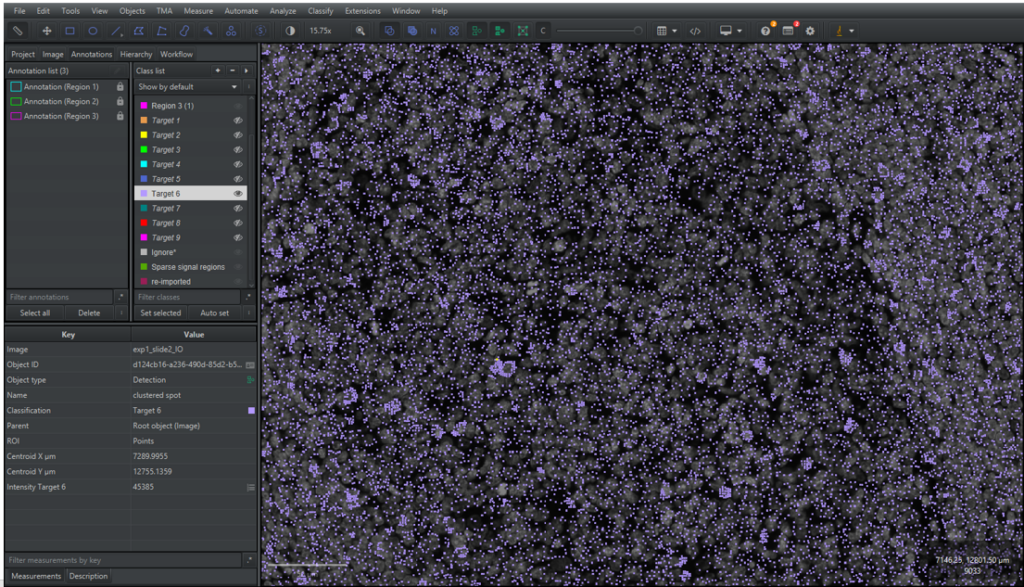
2.3.3 Drag and drop the correct GeoJson file into QuPath to upload the detected objects from 2.2. The detections should now be seen listed in the [Hierarchy] tab in the analysis menu and in the main viewer, as shown in Figure 9 below. If they are not visible in the main viewer, try to click on 
2.3.4 Go to the [Hierarchy] tab in the analysis pane to see a list of the detection signals. The signals will be listed as “Detection (Target X) (1 Point), as shown in Figure 9, where the class in the first parenthesis is the signal classification name specified in the Python script.
2.3.5 The objects are saved as Point GeoJson objects meaning that their geometry only consists of a coordinate. To visualize the points better, QuPath shows a circle surrounding the coordinate. The size of the circles can be changed by clicking on the symbol [

Note: Changing the point size can be slow for a large amount of data.
2.3.6 By selecting one of the objects, the intensity of the coordinate can be seen as a measurement in the measurement list in the [Hierarchy] or [Annotation] tab in the analysis menu, as shown in Figure 9. Signals detected by LoG thresholding will have an additional measurement called “Threshold used for detection”.

2.3.7 Unselect the signal and go to the [Annotation] tab in the analysis menu. At the bottom of the analysis pane there is a summarisation of the number of detections in the image for each class, as shown in Figure 10.
2.3.8 To modify the appearance of signal detections in the viewer, the classes need to be added to the Classification list, as shown in Figure 10. Go to the [Annotation] tab in the analysis menu and right click in the Classification list, click on [Populate from existing objects] → [Base classes only] and click [Yes] in the pop-up window.

2.3.9 Go through the detection classes one by one by toggling off and on the channels and the overlay view of the classes by right clicking on the class in the classification list → [Show/Hide…] → [Hide classes in viewer] / [Show classes in viewer] or by pressing h / s. Use the channel viewer, as explained in section 1.2.1, to look at the channels separately.
2.3.10 Review the signal detection in the ROIs. If you are not satisfied with the results, see section 2.4 below for tips on how to change parameters and re-do the signal detection.
2.4 Signal detection Optimisation
If you are not satisfied with one or a few target signal detections:
2.4.1 Delete the signal detections by their classification by right-clicking on their class name in the classification list in the [Annotation] tab in the analysis pane. Click on [Select objects by Classification] and all detections in the class will be selected. Click on [Objects] in the main menu → [Delete] → [Delete selected objects]. Repeat this for all targets you are dissatisfied with.
2.4.2 Open your modified “isPLA_analysis_pipeline.py” script from section 2.2.
2.4.3 Remove all targets from the 
2.4.4 Read through the guide for parameter optimisation below and make changes accordingly. It is important that changes are made correctly:
- Change parameters
and
in the
dictionary after the semicolon in rows 54-62.
- Change the
values inside the
for each one of the channels in rows 75-77.
2.4.5 Run the analysis and import the new GeoJson dictionary to QuPath, as explained in section 2.3.
Too many false negative sparse signals: There are non-detected signals in the image
- The threshold used in the signal detection may be too high, try lowering it.
- If there are a lot of out-of-focus signals (blurry: low intensity and larger than in focus signals), the algorithm may not capture all signals. In that case, it is better to select a LoG threshold based on in-focus signals.
Too many false positive signals: Noise is detected as signals
- If the false positive signals have the measurement “Threshold used for detection”, the threshold used for LoG detection might be too low. Try to increase the threshold.
- If autofluorescent noise is detected as signals it is best to subtract background images from the signal images (not instructed here).
- If the image is too noisy or have too much background, try reducing noise and background by BigFish pre-processing steps11.
Decomposition of clustered regions are not as expected:
- Note that you can’t know how many signals there actually are in clustered regions, so be careful when changing signal decomposition parameters.
- The beta parameter is the multiplication factor of thresholding for a clustered signal region (threshold = beta • gaussian amplitude). The parameter can therefore be changed to optimise cluster region detection. A greater beta means that brighter regions will be detected as clustered regions, resulting in generally a lower number of detected signals. A lower beta will on the other hand generally increase the number of detected signals.
- The gaussian parameter background can be changed to match the estimated background of your image. The parameter is important to not overestimate the number of signals in clusters.
-
- The background should be measured in the same channels as specified in the gaussian parameters, in autofluorescent images that are negative for isPLA signals. The image should be pre-processed the same way as the image that will be used for cluster decomposition.
-
- If you are not happy with your results, gaussian parameters can be fitted to your parameters by following the instructions in Section 2.5.
2.5 Optional: Workflow for fitting gaussian parameters
Three steps are required to fit new gaussian parameters: (1) Creating a reference signal data set where sparse, singular signals are annotated, (2) using the data set to build a median signal and (3), fitting gaussian parameters to the built median signal.
Creating a reference signal data set
2.5.1 Find images with regions of what you regard as singular and sparse signals for each channel.
Note: The workflow provided in this section assumes that the same reference signal images are used for all channels, meaning that gaussian parameters are fitted for all channels at once.
2.5.2 Create a dataset containing the regions of the sparse targets. The dataset should represent the signal variation in the images to be analysed. For the examples shown here, a single image was created from multiple ROIs in QuPath. This can be done by the following steps:
- Create a QuPath project and add images as described in section 1.
- Create annotations for the ROIs that should be included in the training image. Classify the ROIs by selecting it in the classification list and then clicking on [Set selected]. If different regions are made for different channels, use classification names accordingly.
- Click on [Classify] → [Training images] → [Create training image]. In the pop-up window select the classification of the ROIs and select the preferred image width of each region. Then click on [OK].
- The new training image will be created in the project image list. Export the image to a format compatible with python, in this example the image was exported as an uncompressed ome.tif. This is done by clicking on [File] → [Export images…] → [OME TIFF], in the pop-up window select [Uncompressed] in the Compression type drop down menu and click on [OK]. Select your preferred location and file name and click on [Save].
2.5.3 Creating an annotated training data set for the gaussian fitting requires manual work, but this can be sped up by first detecting signals automatically. Copy and paste the code below into your Python environment.
Note: The annotated training data set can be done completely manually by skipping steps 2.5.4-2.5.10.
2.5.4 Change the path to the folder with the “isPLA_analysis.py” file from 
2.5.5 Change the image file path 
2.5.6 Change the channel names (e.g. 


2.5.7 Run the script and make sure that a new file “[image name]_sparse_spot_detection.geojson” has been created.
2.5.8 Import the detections to your training image in QuPath. Importation of GeoJson objects is detailed in section 2.3. Briefly, drag the file “[image name]_sparse_spot_detection.geojson” from your file explorer and drop it into QuPath while the training image is displayed in the viewer.
2.5.9 Remove any detections you are dissatisfied with by selecting them and clicking on [Objects] → [Delete…] → [Delete selected objects] or by pressing Delete. The detected signals should be singular and not be positioned in the edges of the images. Pressing down Ctrl enables selection of multiple point objects.
2.5.10 Add false negative signals by clicking on the Points menu, , and add points manually (carefully so that each point is centred). Make sure that the signals are classified correctly with the same class as the imported detections. It does not matter if some signals are annotation objects.
2.5.11 Make sure that the labelled signals are single-points and not multi-point objects (several point objects registered as one). The number of points for each annotation is shown in parentheses next to the listed object in the [Annotations] tab, e.g. “FITC (4 points)”. To split multi-point objects, select the object in the annotation list in the [Annotation] tab, click on [Objects] in the upper menu → [Annotations] → [Split annotations].
Note: The reference spot is built as a median of the applied spots from 2.5.4, and therefore it is very important that the detected spots are singular and represents the full variation of the dataset. Also, edge signals should be avoided.
2.5.12 Select all signal annotations and detections by selecting the classes in the Classification list in the [Annotation] tab → [Select objects by classification].
2.5.13 Export the signals as a GeoJson file by clicking on [File] → [Export objects as GeoJson]. Select [Selected objects] in the “Export” drop down list. Keep the compression as None.
Create a median reference signal and fit gaussian parameters
2.5.14 Go back to your Python environment.
2.5.15 Create a new script and insert the code below.
2.5.16 Change the 
2.5.17 Change the 
2.5.18 Change the path to the reference signal GeoJson file from 
2.5.19 Update the 
2.5.20 Update the 
2.5.21 Run the script. The script will plot the reference spot for each channel and print a dictionary with the gaussian parameters in the form {channel name: {sigma_yx, amplitude, background}, …}. This output can be directly copied and pasted to rows 75-77 in your “isPLA_analysis_pipeline.py” script from section 2.
2.5.22 Update the imaging conditions in rows 66-73 in the “isPLA_analysis_pipeline.py” file.
3 Analysing signals in QuPath
This section demonstrates how signals detected with Big-FISH can be analysed in QuPath to classify cells. Figure 11 below provides an overview of the steps included.

The cell detection in this guideline is done with the StarDist extension, which segments stained nuclei, and the signals are mapped to cells using a distance-based approach. Per-target-classifiers are built by thresholding cells by the number of signals and are used to build a multi target cell classifier which classifies cells as, e.g. single and double positive. Lastly, this section will provide an example of how the results can be summarized in QuPath.
3.1 Cell detection by StarDist-QuPath extension
There are different possibilities of doing computational image analysis of multi-plex isPLA tissue images. One step that usually but not necessarily is included is cell detection, which enables the user to assign signals to cells and perform cell classification and phenotyping. In this section, StarDist cell detection in QuPath is exemplified. StarDist is a deep-learning-based nucleus detection method that can be used as an alternative method of cell detection in QuPath other than CellPose and QuPath’s own cell detection algorithm. It is quite straight-forward to use the extension, although the method requires scripting.
Running StarDist for the first time:
3.1.1 Go to the QuPath-Stardist-extension webpage[11] and download the latest file of qupath-extension-stardist-[version].jar from releases and drag it into the main window of QuPath. You might have to restart QuPath before being able to access the extension.
3.1.2 Download a pre-trained StarDist model that is compatible with QuPath. In this guide, we use used “dbs2018_heavy_augment.pb”[13].
Running the StarDist extension in QuPath:
3.1.3 Open the script editor by clicking on [Automate] → [Script] editor or pressing ctrl + [. Copy and paste the code below in the editor, as shown in Figure 12. The script segments cells in the image by the StarDist extension with the use of a pre-trained model.
3.1.4 Change the path direction at row 22 to the path of the pre-trained model, in this case “dsb_2018_heavy_augment.pb”. Any “\” symbols in the path should be replaced with “/” or “\\”.
3.1.5 Change the ROI class names at row 19 so that they correspond to the classes of your ROI annotation objects created in section 1.
3.1.6 Update the name of nuclear stain channel in row 23.
3.1.7 Run the script by clicking on [Run] or by pressing Ctrl + r. The script is finished when an Info box is printed in the editor “Detected X number of cells” and the bottom of the editor displays “Stopped X:X:X”, as shown in Figure 12 below.

3.1.8 You should now be able to see cell detection objects within your annotation ROI in the image viewer and a list of the objects in the [Hierarchy] tab in the analysis menu (you may have to click on the arrow by the annotation ROI).
3.1.9 By clicking on [Measure] → [Show detection measurements] a table of all detection objects and their respective measurements will be shown. By clicking on [Show histograms] and choosing a measurement in the top pull-down menu, a summary of measurements can be seen for the cells.
3.1.10 To toggle detection overlays on and off, click on the [Show/hide detection objects] symbol, 
3.1.11 Tweak the parameters in your script, as described below, until you are satisfied with the results.
(row 36): value used to approximate cell bodies based on distance-based nucleus expansion. A greater value results in larger cell bodies. The parameter should be set according to the cell types present in the sample. As noted below, cell expansion is not considered in the later stages of the analysis workflow, and the value can be left as is for now.
(row 37): value used to constrain the cell expansion to a multiple of the nucleus size. A greater value results in a less strict cell expansion constraint and generally larger cell bodies. Similarly to cell expansion, cell constrain scale will not be considered at later stages and can be left as is for now.
(row 54): value used to set the minimum allowed nuclear area in µm2 for a cell. Smaller cells will be removed. The parameter should be set according to the cell types present in the sample.
(row 55): value used to set the minimum allowed mean nuclear intensity for a cell. Cells of lower intensities will be removed. The value should be set according to the nuclear staining intensities.
(rows 27-30): used to calculate preprocessing normalization based on the entire image to avoid detecting cells in negative regions.
-
: used to down sample the image for normalization. A greater value results in higher run times.
-
: used to normalize the image. Increasing the first value means that more of the darkest pixels are excluded, and increasing the second value means that more of the brightest pixels are excluded. Increase the values if you have artefacts, outliers or contrast issues in your image. Start with a value of 0.1, 99.9 and fine tune if needed.
(row 32): determines the minimum probability that a cell should have to be detected. Lower values may lead to over-detection of nuclei, while higher values may result in under-detection. A value of 0.5 is generally a good starting point.
(row 34): resolution of detection. Start with the same value as your voxel size and fine tune it if you want to better detect smaller or larger cells.
Note: Section 3.2 assigns signals to cells based on the distance from the nucleus boarder to the signal coordinate. Therefore, tuning cell expansion and cell constrain parameters won’t affect the signal mapping. However, due to a design limitation in QuPath, if cell segmentation is run without cell expansion, the resulting objects will not be of the cell object type. Since this limits the ability to identify cells at later steps, it is simplest to perform cell expansion either way but only regard the nuclei in the remaining analysis. Explanations for mapping signals based on the whole cell body is given within section 3.2 if desired.
3.1.12 (Optional) To run cell detection for multiple images in a project, click on [] → [Run for Project], mark the images in the “Available” box that you want to analyse and click on [>] to move them to the “Selected” Box. Once all images have been moved to the correct box, click on [OK]. A bar will now show to indicate how many of the images that are done. Once done, a pop-up window will show up asking if you want to reload the image you have opened, press [OK].
3.2 Signal mapping
Signal mapping is done to assign signals as child objects to cells, which later will be used for classifying cells as positive or negative for each marker. In this guide, a distance-based approach is applied where the cell with the shortest distance from its nucleus boundary to the signal is chosen as a parent. A threshold is chosen to set the maximum allowed distance that a signal can have from a nucleus boundary to be assigned as a child object.
3.2.1 Open the script editor and click on [File] → [New] or press Ctrl + N to open a new script. Copy and paste the code below. The script maps signals to cells by assigning them as cell child objects. Additionally, the script adds a measurement of the number of assigned signals of each signal class to the cell.
3.2.2 Change the distance parameter at row 21 to change the maximum allowed distance between a signal coordinate to the boundary of a cell. The signal will only be assigned if the distance is equal to or smaller than the distance threshold.
Note: Signals are defined as a detection object that is not of the object class “cell” (row 20). This needs to be redefined if there are other non “cell” detection objects that should not be sorted, for example by finding objects by classification:
3.2.3 Run the code by clicking on [Run] or Ctrl + R.
Note: QuPath works with objects in a hierarchical system with the image as the root-object. The system makes it easier to organize the analysis results and to call for detection objects within certain annotation ROIs. The hierarchies can be seen in the [Hierarchy] tab and the child objects are listed by clicking on the arrows on the left side of the parent object. More information regarding hierarchies can be found at QuPath’s documentation site[14].
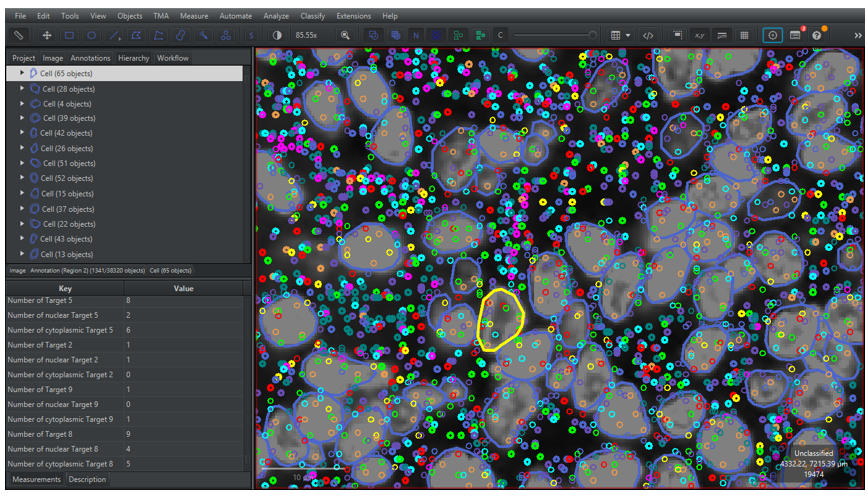
3.2.4 Go to the [Hierarchy] tab in the analysis menu to see the hierarchy of annotation and detection objects in the analysis panel. By clicking on the arrows on the left side of the cells, the signal child objects will be shown. Moreover, by selecting a cell the number of assigned signal object for each class can be seen in the measurement list as “Number of (target)”, as shown in Figure 13.

3.3 Cell classification
This section demonstrates how one can create cell classifiers in QuPath for multi-plex isPLA images. It should be noted that this is an example of how data created in section 2, 3.1 and 3.2 can be analysed, but many other methods exist to run cell classification.
3.3.1 Single measurement classifier
3.3.1.1 Go to the [Annotations] tab in the analysis menu. Add new classes for cell positivity for each one of your targets by right-clicking in the classification list to the right and click on [Add/Remove] → [Add Class]. Write the name of the new class and then click on [OK]. Repeat the step for all targets. Alternatively, classes can be created based on channels by right-clicking on the classification list → [Populate from image channels]. Note that the classification name should not be the same as used for the signal detection.
3.3.1.2 Click on [Classify] → [Object Classification] → [Create single measurement classifier]. A new dialogue window will now pop up.
3.3.1.3 Choose [Cells] as Object Filter. Leave the Channel filter as [No filter (allow all channels)]. In the [Measurement] roll down list, choose one of the measurements “Number of [Target X]” created in previous section for one of the targets, as shown in Figure 14.
3.3.1.4 To facilitate choosing an appropriate threshold for cell classification, the signal detection classes can be toggled off, as described in step 2.3.9.
3.3.1.5 Turn off the other channels by clicking on the [Brightness/Contrast] symbol and ticking of the channels, as described in step 1.2.2.
3.3.1.6 In the [Above threshold], select the class created for the target. In the [Below threshold] select [Unclassified] if the negative cells should not be classified.
3.3.1.7 Tick on [Live preview] and drag the [Threshold] pointer to change the minimum number of signals for cell positivity. Cells that have equal to or more signals than the selected threshold will be assigned the classification selected in the [Above threshold], the remaining cells will be kept unchanged. The main viewer will update the cell classifications by changing the overlay colour to the class colour according to the classification list in the analysis pane, as shown in Figure 14. Alternatively set the number of signals that should facilitate a positive cell in the box next to the threshold pointer.
3.3.1.8 Select an appropriate threshold and write a name in [Classifier name] and press [Save]. A window will appear in the left down corner of the screen to inform that the classifier has been saved. All classifiers will automatically be saved in a folder named “classifiers” in the project folder.

3.3.1.9 Repeat steps 3.3.1.2 – 3.3.1.7 for each one of your targets.
Note: Using a machine-learner or a deep-learner for cell classification can improve and advance your results beyond simple counts. QuPath has more information on how to do this in their documents.
3.3.2 Creating and running a composite classifier
In Section 3.3.1, classifiers were built to independently classify cells as positive or negative for each target. To identify cells that are positive for multiple targets simultaneously (e.g. cells positive for Target 1, Target 2 and Target 3), these individual classifiers are combined into one. The composite classifier will create new classes for all possible combinations of the classes and classify the cells accordingly.
3.3.2.1 Click on [Classify] → [Object Classification] → [Create composite classifier]. A new dialogue window will now pop up.
3.3.2.2 Select the classifiers created in section 3.3.1 above in the [Available] box and then click on the [>] to move them to [Selected], as shown in Figure 15. Enter a name for the new classifier in the [Classifier name] and click on [Save].
3.3.2.3 Apply the composite classifier by clicking on [Classify] → [Object Classification] → [Load object classifier], select the classifier and click on [Apply classifier]. Alternatively, copy the code below and replace the string to the name of your classifier.

Note: Only one classification label is allowed per cell object. To overcome this when classifying cells with multiple classes, new classes are made by calling them “+ Target1: + Target 2 : etc…”, meaning that a new class will be created for each possible target combination.
3.3.2.4 (Optional) Add the new classes by clicking on the [Annotations] tab and right-clicking on the Classification list box → [Populate from existing objects] → [All classes]. This facilitates toggling the viewing of the objects on and off.
3.3.2.5 A summary of cell positivity can be seen by clicking on the annotation region of interest and looking at the measurement table on the lower left side.
3.3.2.6 Save the changes to the project when you are done.
3.4 Reviewing results
It is advisable to review the data output before continuing to downstream analysis. The following steps in this section can be performed for data review.
A simple co-occurrence matrix for marker positivity can be done by the following instructions:
3.4.1 Copy and paste the code below to a new script to print out a co-occurrence matrix for each main cell class (e.g. +Target 1, +Target 2 etc), as exemplified in Figure 16.
3.4.2 Add more targets to the cell classification list by removing the 

3.4.3 The script will be finished when the terminal has printed a header with “Co-occurrence matrix for ROIs [list with specified ROIs]” followed by a co-occurrence matrix. Copy the results that are printed in the terminal and paste it an empty excel sheet.
3.4.4 In Excel, select all numerical elements, go to [Home] -> [Conditional Formatting] -> [Colour scales] and choose one of the options. Now you can see an overview of all the co-occurrences of target positivity for the cells in the selected ROIs.
A bar graph to show the number of positive cells for each marker can be created in QuPath by the following instructions:
3.4.5 Copy and paste the code below to a new script. The script prints out bar graphs for each ROI class of the number of cells for each classification.
3.4.6 Add more targets to the cell classification list by removing the 


3.4.7 Run the script.
3.4.8 A dialogue window will appear with a bar-graph showing the fractions of cell positivity in each ROI, as shown in Figure 16.

This guide has provided an example workflow for analysis of isPLA data. The guide has included an introduction of how to use QuPath, recommendations for how to detect isPLA signals and examples of how to perform cell segmentation, signal mapping to cells and multi-target cell classifications. There are many more implementations not covered by this guideline, be sure to tailor your image analysis workflow to suit your specific research questions.
If you have any remaining questions, please do not hesitate to contact our support.
or press m, and then select the annotation by double clicking on it. The annotation is moved by pressing the cursor down within the annotation and then dragging it around.
– specifies the name of the target and will be used as the classification name in the output GeoJson file.
– used to detect sparse signals with varying amplitudes and sizes. A lower value results in a higher number of detections and a greater risk of detecting background noise.
– used to find cluster regions in which the number of clustered signals should be approximated. A greater value means that a higher number of clustered signals will be detected.
parameters that are used for approximating clustered signals, describes the amplitude and size (
) of a single median signal. The gaussian parameter is specific to imaging conditions and fluorophores, as shown in rows 63-72.
.
. A higher beta means that cluster decomposition will only be run in brighter areas.
: a list of the GeoJson object dictionaries.
: a list containing signal information of shape (x, y, detection type) where detection type 1 is detected by gaussian mixture and detection type 2 is detected by the LoG thresholding.
values inside the
for each one of the channels in rows 75-77.
(row 36): value used to approximate cell bodies based on distance-based nucleus expansion. A greater value results in larger cell bodies. The parameter should be set according to the cell types present in the sample.
(row 37): value used to constrain the cell expansion to a multiple of the nucleus size. A greater value results in a less strict cell expansion constraint and generally larger cell bodies. Similarly to cell expansion, cell constrain scale will not be considered at later stages and can be left as is for now.
(row 54): value used to set the minimum allowed nuclear area in µm
(row 55): value used to set the minimum allowed mean nuclear intensity for a cell. Cells of lower intensities will be removed. The value should be set according to the nuclear staining intensities.
(rows 27-30): used to calculate preprocessing normalization based on the entire image to avoid detecting cells in negative regions.
: used to down sample the image for normalization. A greater value results in higher run times.
: used to normalize the image. Increasing the first value means that more of the darkest pixels are excluded, and increasing the second value means that more of the brightest pixels are excluded. Increase the values if you have artefacts, outliers or contrast issues in your image. Start with a value of 0.1, 99.9 and fine tune if needed.
(row 32): determines the minimum probability that a cell should have to be detected. Lower values may lead to over-detection of nuclei, while higher values may result in under-detection. A value of 0.5 is generally a good starting point.